
Microsoft 365 Copilot Roadmap Webinar—your monthly front-row seat to what's new, live demos, and what's next.
Register today

The guiding principle: Simplicity drives adoption.

Frontline workers need to open an app, immediately see what matters to their shift, and take action — in under 60 seconds. Every configuration decision in this playbook is designed to make that possible. A focused, simple experience is the fastest path to a thriving frontline community.

IT admins

Teams Admin Center

Create an app setup policy: Pin Engage and Chat

The single highest-impact configuration step. A custom app setup policy gives frontline workers a focused, curated Teams experience — with exactly the apps they need, right where they expect them.

Why a dedicated policy makes the difference

A tailored app setup policy pins the right apps to the Teams mobile nav bar and presents frontline workers with a clean, focused experience from day one. This makes the platform immediately intuitive, reduces onboarding time, and keeps workers engaged with the channels that matter most.

Device strategy — choose the right model for your workforce

Shared devices

On-shift only

Full device management via Intune. QR + PIN sign-in keeps onboarding fast for deskless workers. Shared Device Mode automatically signs users out between shifts, preventing data exposure across workers sharing the same handset.

Best for: Retail, logistics, warehouse

BYOD (personal device)

On-shift + off-shift

MAM (Mobile Application Management) policies protect corporate data without managing the personal device. Working Time Signals limits off-shift access for right-to-disconnect compliance. Best coverage of off-shift communication scenarios like schedule swaps and HR access.

Best for: Field workers, service roles

Back-office PC

On-shift only

Full device management and ideal for HR resources, scheduling, and training content — but not a good fit for real-time communications. Workers who are moving around a store or site can’t check a desktop app while on the floor. Treat as a supplemental access point only.

Best for: Back-office, break room kiosk

Recommended core pins — Teams mobile nav bar

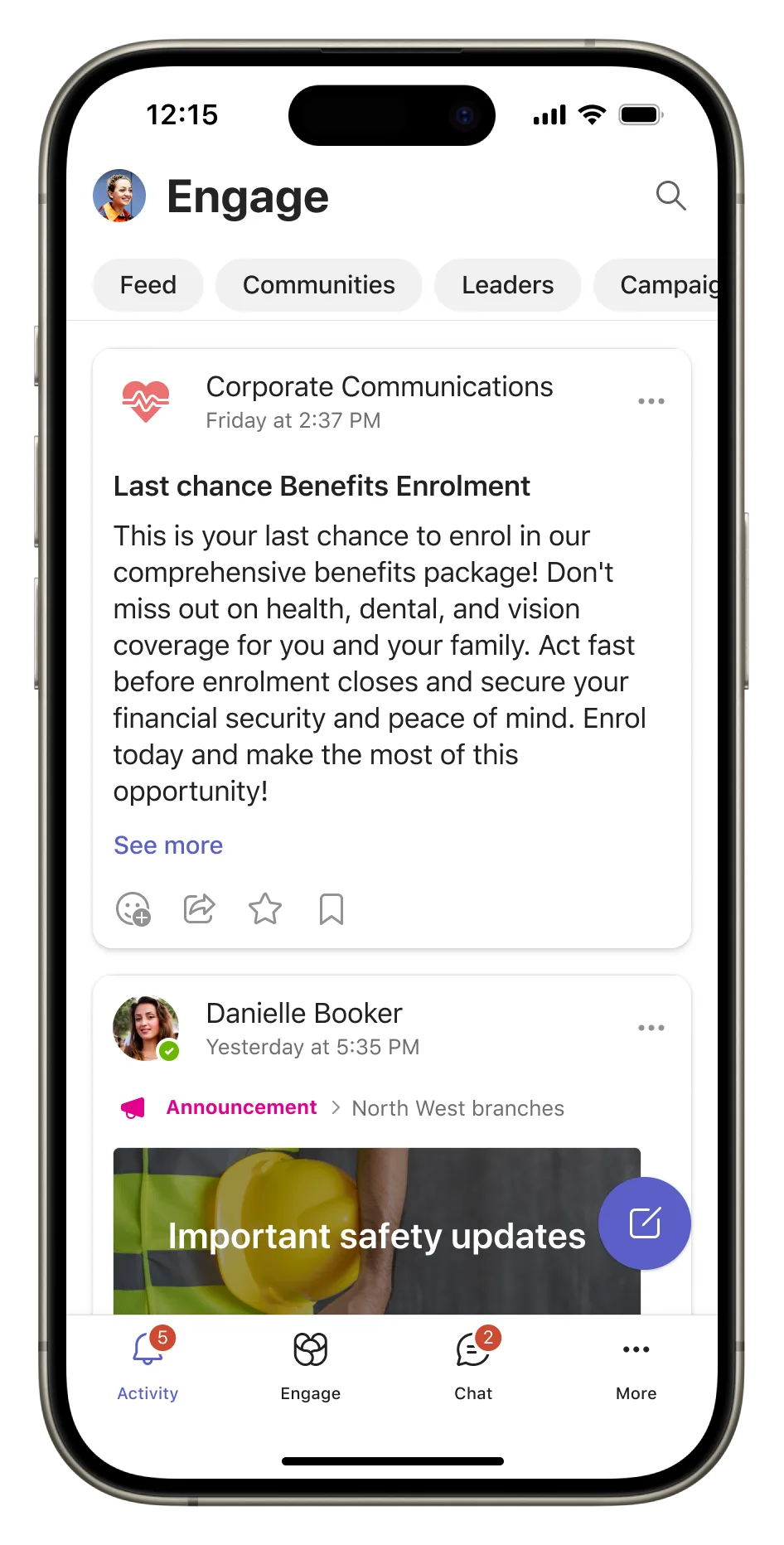
Position 1 • Viva Engage

Home feed and communities

Position 2 • Chat

1:1 and group chats

Position matters — a lot.

When Engage is the first pinned app in the mobile navigation, community posts reach 80% of users. When it’s second, third, or fourth, reach drops to 30%.

Optional add-ons — layer on once employees are comfortable

Once your frontline workers have settled into the experience and Engage + Chat feel natural, layer in these additional apps to deepen utility. Introducing too many apps at once increases cognitive load and slows adoption — start lean, then expand.

Home

A curated company dashboard that surfaces HR resources, pay slips, policies, wellbeing tools, and quick links — all in one place. Reduces the need for workers to navigate multiple systems or contact HR directly. Best introduced once workers are actively using Engage as their daily communications channel.

Best for: All roles, phase 2

Configuration steps — Teams Admin Center

1

Create a new app setup policy

Teams Admin Center → Teams appsSetup policies+ Add. Name it Frontline Workers. Create a dedicated policy so you can tailor it independently of other user populations.

App setup policies

2

Pin apps in priority order

Under Pinned apps, add in sequence: Viva Engage → Chat. Keep the core pin set to these two for launch — add Shifts, Tasks, or Viva Connections once workers are comfortable.

Pin apps in TAC

3

Curate the app catalog

Use an app permission policy to surface only the apps relevant to frontline work. A focused catalog helps workers find what they need and keeps the experience clean.

App permission policies

4

Assign to your FLW security group

Assign the policy to the security group for your frontline population — by department, location, or license type. Run a pilot of 20–50 workers first before broad rollout.

Deploy Teams at scale

Tip: Use direct links in your onboarding materials

Include a direct deep-link to Viva Engage in your launch QR codes, break room posters, and onboarding guides. This ensures workers land exactly where you want them on their first session, creating a confident first impression of the platform.

IT admins Frontline comms managers

Viva Engage admin

Design a clear community architecture

A thoughtful community structure is the foundation of frontline adoption. Give workers a clear, simple hierarchy — they should always know exactly where to look for what, without having to search or scroll.

Tier 1 · Required

Official communications

The trusted, single source of truth for operational updates, safety notices, policy changes, and leadership messages. All frontline workers are auto-joined so no one misses critical information.

Recommended settings

  • Mark as Official Community in Engage Admin Center
  • Restrict posting to approved senders for a consistent voice
  • Set default notification to New posts only
  • All-company scope, not store-specific

Tier 2 · Required

Regional community

One community per region — covering a group of stores, sites, or locations — gives workers a relevant, manageable local context. Regional managers broadcast district-level updates; workers connect with peers across nearby locations. A community per individual store creates too many communities, too little engagement, and unsustainable management overhead.

Recommended settings

  • Membership auto-synced via HR region/district attribute in Entra ID
  • Regional manager posts; store managers and workers engage
  • Naming convention: [Region / District Name]
  • Aim for 50–500 members — large enough for vibrancy, small enough to feel local

Tier 3 · Recommended

Culture and recognition

A dedicated space for celebrations, peer recognition, team challenges, and milestones. Separating this from operational content lets culture thrive without competing with time-sensitive updates.

Recommended settings

  • Open — any employee can join
  • All members can post
  • Reactions and GIFs enabled
  • Feature Viva Engage Praise here

Keep it focused: 2–3 communities per worker is the sweet spot

A small number of highly relevant communities creates strong engagement. Pre-join workers to their regional community and Official Communications on hire via HR integration — so they’re connected from day one without needing to search or discover communities themselves.

Separate operational from social — both perform better for it

When safety briefings and celebration posts share the same feed, each competes for attention. Dedicated communities for each type give operational content the clarity it needs, and cultural content the space to be fun and engaging. Both benefit from the separation.

IT admins

Identity and HR

Connect HR data for dynamic membership

Frontline workforces are always changing — store transfers, role changes, seasonal hiring. Connecting HR data to Microsoft Entra ID means community membership stays accurate automatically, so every worker is always connected to the right communities without manual effort.

Recommended approach

Dynamic groups via Microsoft Entra ID

Create dynamic security groups in Entra ID that automatically assign workers to communities based on HR attributes synced from your HR system, such as SAP SuccessFactors, Workday, or others. New hires are connected on day one; leavers are removed automatically.

(user.department
-eq "Store Operations")
-and (user.physicalDeliveryOfficeName
-eq "Melbourne Central")

Key HR attributes to sync

  • Region / district — maps to regional community
  • Department / role — maps to role communities
  • Region — enables regional broadcast groups
  • Employment status — keeps membership clean on departure
  • Start date — triggers auto-join to onboarding community

Hybrid model

Dynamic base + manual additions

Use HR-synced dynamic groups as your base, then add manual members for edge cases that HR taxonomy doesn’t cover:

  • Regional managers overseeing multiple stores
  • Contractors and vendor partners
  • Cross-functional supporting roles
  • Temporary seasonal hires

Test the full membership lifecycle before you launch

Add a test user in your HR system and verify they appear in the right Engage community within 24 hours. Then terminate the test account and confirm they’re removed. This end-to-end test gives you confidence that membership will stay accurate at scale — and that new hires are connected from their very first day.

IT admins Frontline comms managers

Notifications

Configure notifications for sustained engagement

Getting notification defaults right before launch is one of the most important things you can do for long-term adoption. Smart defaults keep workers informed without overwhelming them — so they stay engaged with the platform over time.

The goal: the right signal at the right time

Well-configured notifications act like a helpful tap on the shoulder — they tell workers when something important has been posted and stay quiet the rest of the time. Setting “new posts only” as the default for operational communities ensures every notification carries genuine value.

Recommended notification defaults by community tier

Community tier New posts Replies to posts Reactions @Mentions
Tier 1 — Official communications ON OFF (workers choose) OFF (workers choose) ON
Tier 2 — Location / store ON OFF default (workers choose) Workers choose ON
Tier 3 — Culture and recognition Workers choose Workers choose Workers choose ON

Walk through notification settings in your week 1 onboarding

Include a brief walkthrough of Teams mobile notification settings during your manager-led onboarding session. Help workers configure quiet hours to match their shift pattern — this makes the platform feel respectful of their time and builds long-term trust in the channel.

Teach workers how to manage individual thread subscriptions

Include this in manager training: when a worker wants to stop receiving updates from a specific conversation, they can tap ··· → Stop following this conversation. Empowering workers to control their own notifications creates a healthier long-term relationship with the platform.

Right to disconnect — Australia and EU

Australian legislation, effective August 2024, and emerging EU regulations address after-hours communication with workers. Make configuring quiet hours a required step in your onboarding guide. Set hours to match each worker’s standard shift pattern. Teams Shifts

IT admins Frontline comms managers Corporate communications

Deployment

Get frontline workers up and running

A great first experience is the foundation of lasting adoption. Design the rollout to deliver immediate, relevant value — workers who see the platform working for them in session one keep coming back.

Microsoft’s frontline digital maturity model

Phase 1 — Enable

Secure the baseline

Identity, device management, app policies, and foundational communication. Every worker has access and can use Teams on day one.

Phase 2 — Empower

Drive engagement and productivity

Viva Engage communities, Shifts self-service, task management, and training via Viva Learning. Workers actively participate and manage their work lives.

Phase 3 — Transform

Digitize and automate

Power Platform for digitized processes, AI agents for Q&A and task automation, Viva Connections as a personalized home experience. Operational efficiency at scale.

Before launch

Set up before day 1

  • App setup policy deployed to FLW security group
  • HR integration syncing community membership
  • Notification defaults configured on all communities
  • Welcome post drafted and ready to publish
  • Managers trained before the worker rollout begins

Week 1

Install and first impression

  • Manager-led 5-minute walkthrough at team huddle
  • Show workers their regional community first
  • First action: react to the welcome post
  • Walk through quiet hours setup together
  • QR code poster in break room → direct link to Engage

Weeks 2–4

Build the daily habit

  • Regional manager posts updates; store managers engage and amplify locally
  • Recognition post that names a worker by name
  • Route time-sensitive info through Engage, not email
  • Share engagement data with managers weekly
  • 30-day check-in survey on worker experience

For communications and corporate comms teams

Plan a content calendar before launch

Prepare at least 2 weeks of content before launch day. The Official Communications community needs 2–3 posts per week to establish the habit. A steady publishing rhythm signals that this is an active, reliable channel — and keeps workers coming back.

Empower managers as local publishers

Train regional managers to own the feed in their regional community. Corporate comms drives the Official channel; regional managers drive local relevance. This distributed model scales content production without bottlenecks at the center.

Write for a 6-inch screen between tasks

Lead with the most important information in the first sentence. Short paragraphs, 2–3 sentences max. Bullet points for action items. Bold the critical detail. Clear, scannable writing is a gift to someone who has 30 seconds between tasks.

Use Articles for evergreen content

Viva Engage Articles — structured posts with headers, images, and sections — are ideal for onboarding guides, policy explainers, and FAQs that need to stay discoverable over time. Use standard posts for time-sensitive operational updates that belong in the active feed.

BYOD deployment

Bring-your-own-device workers need a clear, welcoming install experience and a sign-in path that works for employees who may not use corporate email every day.

Make installation easy and welcoming

For BYOD workers, the install experience sets the tone. Use QR codes with a clear, friendly message and manager-assisted install sessions rather than IT-only communications. A personal invitation from a direct manager drives higher install rates than an IT notice. Get Teams clients

Configure enrollment for workers without corporate email

Set up SMS-based MFA or employee-ID authentication so workers can enroll using their phone number or employee number instead of a corporate email address. This removes a common barrier to getting frontline workers connected. SMS sign-in for frontline

Frontline comms managers Corporate communications

Mobile experience

Optimize for mobile-first workers

Frontline workers are mobile-first — often mobile-only. Content and configuration decisions tested on a physical device before deployment create a consistently excellent experience across your entire workforce.

Content formatting

  • Lead with the key message in sentence one
  • 2–3 sentence paragraphs for easy scanning
  • Bullet lists for actions and next steps
  • Bold the one piece of critical information
  • Post content directly — keeps workers in the app
  • Link to SharePoint for files that require rich formatting

Images and video

  • Use landscape images, 16:9, for best mobile display
  • Keep videos under 90 seconds for FLW audiences
  • Add captions to all video content
  • Include key message as post text alongside videos
  • Add explicit “Tap to watch” prompts in post body

Testing before launch

  • Test on both iOS and Android before major launches
  • Test standalone Engage app and Teams-embedded
  • Test on a mid-range Android, not a flagship
  • Test on store or warehouse Wi-Fi speeds
  • Validate the full first-session experience end-to-end

Post content directly for the best mobile experience

Writing operational content — shift briefings, safety notices, policy updates — directly as Viva Engage posts or Articles keeps workers in-app and ensures the content renders beautifully on any device. For reference documents and forms that need to persist, link to SharePoint which provides broad device compatibility and version control.

IT admins Frontline comms managers Corporate communications

Pre-launch

Pre-launch checklist

Use this checklist to confirm you’re ready for a successful go-live. Items marked as priority are the most critical to completing before workers receive their first communications.

IT admin — Teams configuration

App setup policy created and named — “Frontline Workers” policy with Chat + Viva Engage at positions 1 and 2

Policy assigned to FLW security group — pilot group of 20–50 workers tested first

Priority — License audit complete — confirm which features each license tier provides and align the right tier to each role

App permission policy configured — frontline-relevant apps surfaced in catalog

MFA configured for BYOD — SMS or Authenticator app configured for workers without corporate email

Teams mobile tested on iOS and Android — including on store or warehouse Wi-Fi

Viva Engage community setup

Priority — Official community created and designated — marked as Official in Engage Admin Center, posting restricted to approved senders

Location communities created with consistent naming — one per store or site

Workers pre-joined to relevant communities — via HR integration, ready from day one

Priority — Notification defaults set — Official community configured as “new posts only”

Welcome post drafted and scheduled — with a simple first action for workers

2 weeks of content planned and ready — so the feed is active from day one

HR and identity integration

Priority — End-to-end test complete — new user added in HR → appears in Engage community within 24 hours

Offboarding flow verified — leavers are removed from communities automatically

Legacy account cleanup complete — inactive accounts removed from Engage

Store transfer flow working — worker moves location → joins new community, leaves old one

Manager and comms readiness

Priority — Managers trained before workers — managers are the most important driver of adoption; their confidence on day one shapes everything

Manager posting guide created — one page covering how to post, when to use Engage vs. chat, and notification guidance

QR code posters printed and placed — in break rooms with direct link to Viva Engage

Success metrics defined — MAU targets, engagement baseline, and review dates agreed with stakeholders

Analytics export process in place — regular data pull scheduled so you have trend data from week one

Frontline comms managers Corporate communications

Success metrics

What healthy adoption looks like

Day 30 target

60%

App install rate

Of eligible FLW population

Day 60 target

40%

Monthly active users

Of install base

Ongoing

<60s

Time to first value

Open app → relevant content visible

Ongoing

Posts per community/week

Minimum to sustain the habit

Set up analytics tracking from day one

Establishing a baseline data export process at launch means you’ll have trend data to share with stakeholders when they ask for ROI evidence. Schedule a weekly admin data pull from day one so you can show the adoption curve growing over time. Viva Engage analytics overview

Customer stories

Organizations leading the way

Real deployments at scale — from 100,000-person global franchise networks to distributed commercial real estate teams. These organizations have done what this playbook describes, and the results speak for themselves.

Retail · Food and beverage

Domino’s Pizza Enterprises

100,000+ frontline workers12 markets unified1 platform

The challenge

Each of the 12 markets was on a different platform with miscellaneous strategies for internal communications. Corporate comms reached managers only — non-management workers received zero direct communication. WhatsApp filled the gap for manager-to-manager chat, creating compliance and data risk.

The outcome

Microsoft Teams + Viva Engage replaced fragmented market-specific tools with a single, unified platform. Multilingual communication now reaches every worker directly. A culture of global accountability and entrepreneurship has replaced the information bottleneck at manager level.

“Viva Engage provides untapped potential for information sharing, knowledge, and inspiration.”

Amanda Mains · Corporate Communications Manager

“Viva Engage sealed the deal.”

Matthias Hansen · Group Chief Technology Officer

Products deployed:Microsoft TeamsViva EngageViva GlintRead full story

Professional services · Commercial real estate

CBRE

115,000 employees2 months preview to global launch

The challenge

115,000 employees across office-based, client-based, remote, and mobile roles. As hybrid work expanded, ensuring distributed workers — especially those at client sites — received relevant information and stayed connected was increasingly difficult.

The outcome

Viva Connections + Viva Engage inside Teams gave every employee a personalized, mobile-first experience. Audience targeting via Entra ID groups meant office workers and frontline workers see content tailored to their role. Rollout word-of-mouth drove adoption before the official launch.

“The real game-changer for us with Viva and Teams was mobile.”

Wendy Sherwood · VP Corporate Communications

“Because Viva resides within the Teams application, we administer the Viva applications using Teams policies. The team can administer Viva with very little additional learning.”

Luke Morris · VP Digital and Technology

“Now, we’ve got Viva as a one-stop-shop for all things CBRE.”

Cicily Scharlach · Director of Client Strategy and Consulting

“I’m away from my desk a lot throughout the day, and I love being able to access Viva through Teams to stay connected from anywhere.”

Juanita Mebane · Operations Manager

Products deployed:Microsoft TeamsViva ConnectionsViva EngageViva AmplifyRead full story

Frontline Fridays — on-demand expert sessions

Microsoft’s six-part Frontline Fridays series covers everything from deployment strategy and adoption to operational efficiency, Viva Connections customization, and AI agents. Free, on-demand, and built from direct engagement with hundreds of enterprise customers. Watch the series

Frontline Fridays on demand series

Are you ready to enhance the way your frontline workforce operates with Microsoft’s suite of tools? Join us for Microsoft Frontline Fridays, a series of expert-led sessions designed to help organizations maximize productivity, security, and efficiency for frontline employees.

Watch now
Deploying Microsoft Teams and Microsoft Viva Engage for Frontline Workers